

 ΕΛ
ΕΛProduct Information
PRINTER INSTALLATION
To connect the new printer with Bluetooth, you must first connect the device from the settings of the respective device and type the pairing code of each printer as stated in its instructions.
Then, in our application we go to the General Settings and select the receipt template “Thermal Printer”
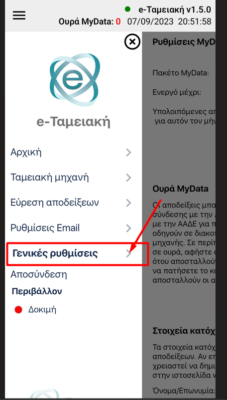
MOBILE SCREEN
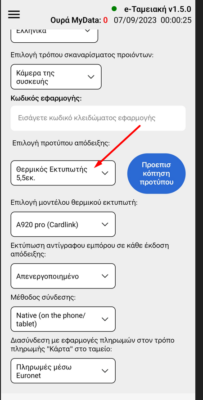
MOBILE SCREEN
Automatically the connection method is “Bluetooth” and also automatically in the thermal printer model selection the “Default Printer” is preset, which is the first thermal printer that the device has connected to.
Alternatively, if we want to change and specifically select the printer-device we want to connect to, we open the thermal printer model option and select the desired device from the list.
To connect a new printer via Wifi we go to General Settings and select the “Thermal Printer” receipt template. Then we select the Wifi connection method and automatically 2 fields appear: the IP address of the printer and the port. After we enter these 2 fields correctly, the printer will be connected.
The copy printing option on each receipt issue applies to all methods and all printers that the device can connect to (Commerce, Cardlink, Viva)