

 ΕΛ
ΕΛProduct Information
APPLICATION GENERAL SETTINGS
The General Settings are necessary for the application to be functional. In this field, all the details of the subscription package you have purchased, the holder’s details, etc., are gathered. As you will see, some details are already registered in the application by Primer, with the purchase of the product (subscription package, active subscription duration, holder details), while some other settings must be entered by you.
ATTENTION! All your Login and Identification details are UNIQUE and necessary for the Activation of the application and you must keep them in a safe place.
MyData Settings – Holder details #
From the Options Menu we select General Settings.
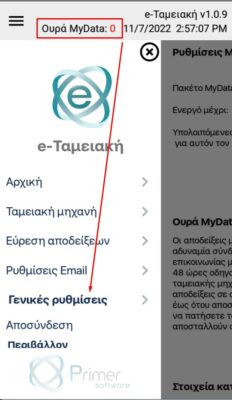
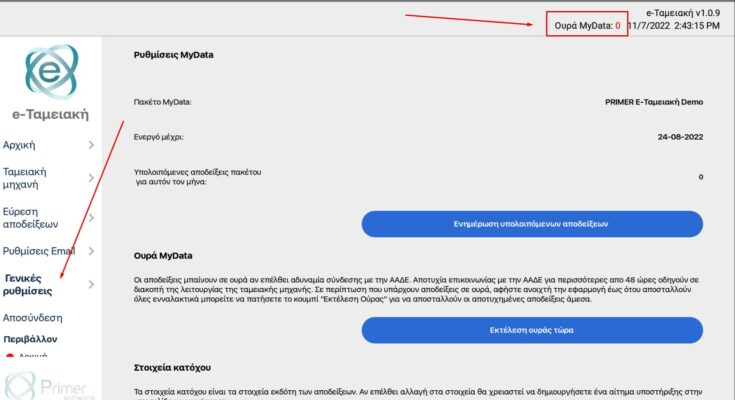
TABLET SCREEN
The screen that appears contains all our identification details, which are unique.
In the My Data Settings field, the details of the subscription package you have selected are mentioned as well as until when it will be active.
In the Holder Details field, all the details of the company or the freelancer holder of the application are mentioned, which are filled in automatically upon activation of the product.
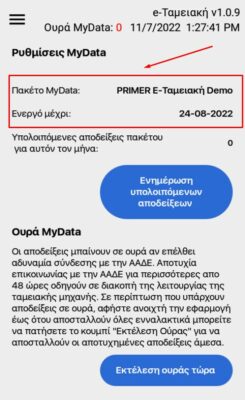
MOBILE SCREEN
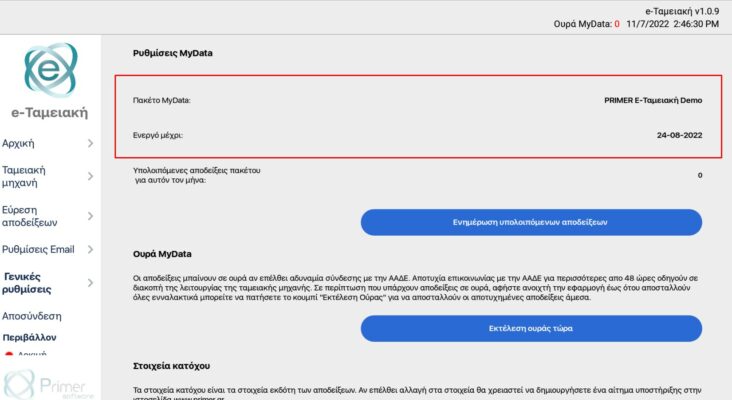
TABLET SCREEN
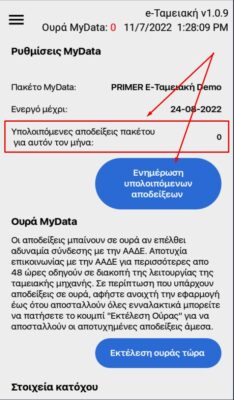
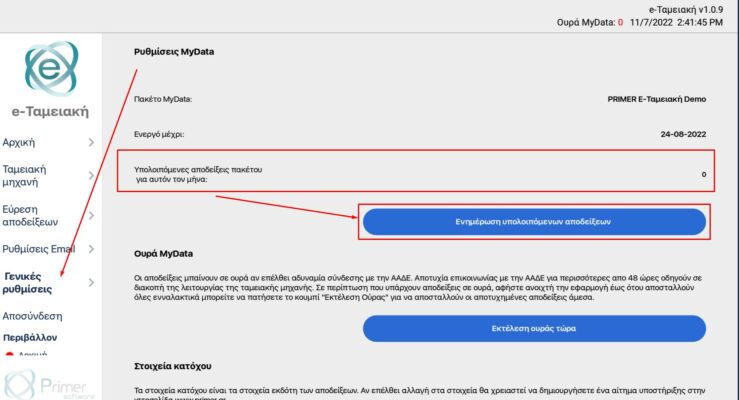
In the Remaining receipts for this month, field, as shown on the screen, a number is always displayed indicating (depending on the package you have installed) how many more NEW receipts you can issue, having calculated the ones issued so far. If you are not sure that the number displayed is representative, you can use the Update remaining receipts button to immediately refresh the number.
Application Environment #
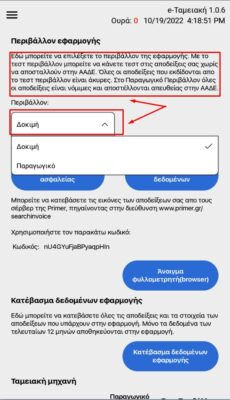
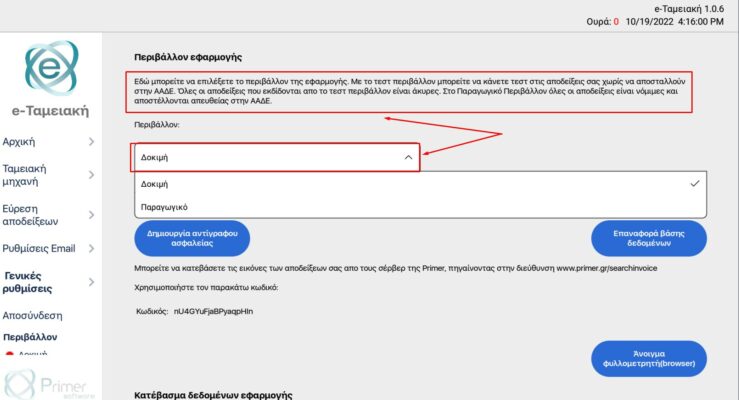
By scrolling the screen, additional necessary characteristics regarding the environment in which we operate the application appear. If you are in a Test environment, then, as mentioned on the screen, the receipts you will issue, are not sent to AADE and are considered invalid. The Test environment was created exclusively for the user’s convenience, in order to become familiar with the use of the application.
ATTENTION! If you select Production environment, then all the receipts you will issue are legal and will be sent automatically to AADE.
Backup creation #
If you want to save all the details and settings you have entered in the application, you have the possibility to do so by selecting the Create backup. button. In this way, in case you disconnect from the application and want to activate it again, by clicking the Restore database button, all the details and settings you had saved before disconnecting are restored.
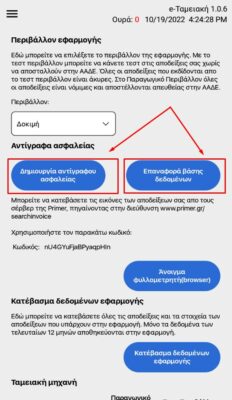
MOBILE SCREEN
Search receipts on the server #
To retrieve the images of the receipts you have issued, you can search for them from the Primer server, at the address mentioned on the screen below, using the code provided on it. By selecting Open browser you are automatically transferred to Primer’s website and you are given the possibility to do a Bulk search of invoices through the Primer Server. Your identification details are automatically displayed.
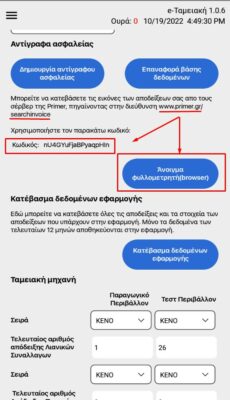
MOBILE SCREEN
On the Primer Server screen, your company’s details as an issuer will appear automatically and you select the Submit button.
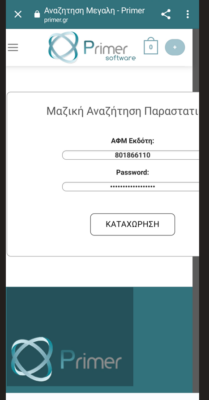
MOBILE SCREEN
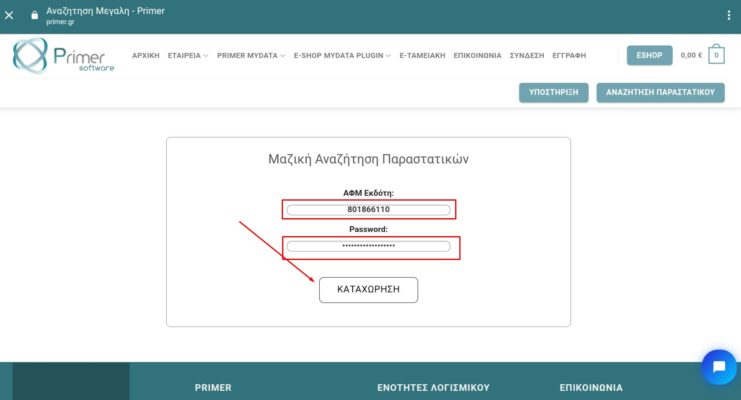
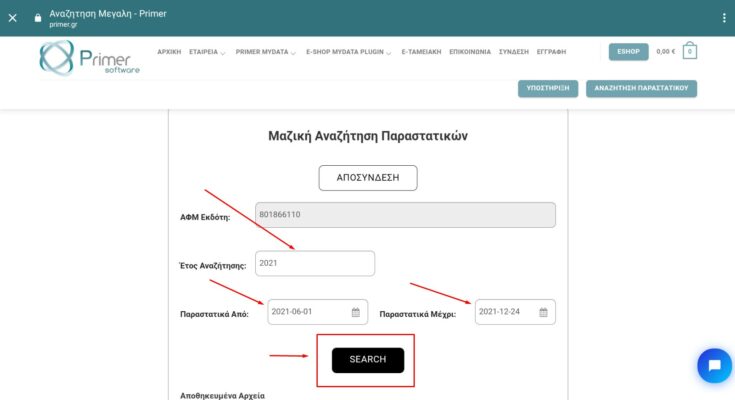
Next, you must define the search criteria for the invoices you want to retrieve.
- Search year
- Invoices from : (setting the initial search date)
- Invoices until : (setting the last search date)
Finally, by clicking the Search button, the records of the invoices you requested appear, according to the above search criteria.
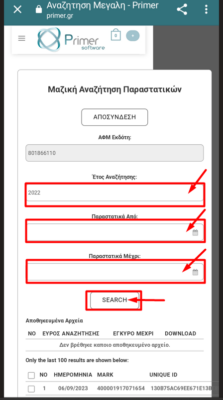
MOBILE SCREEN
Please note that only the last 100 receipts issued within the search period you defined will be displayed on your screen. To find the receipt you are looking for, in case it is not among those displayed, please narrow down the search criteria accordingly and try again.
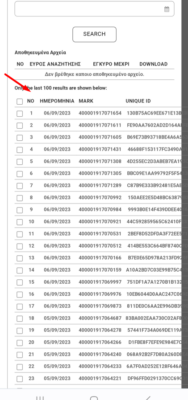
MOBILE SCREEN
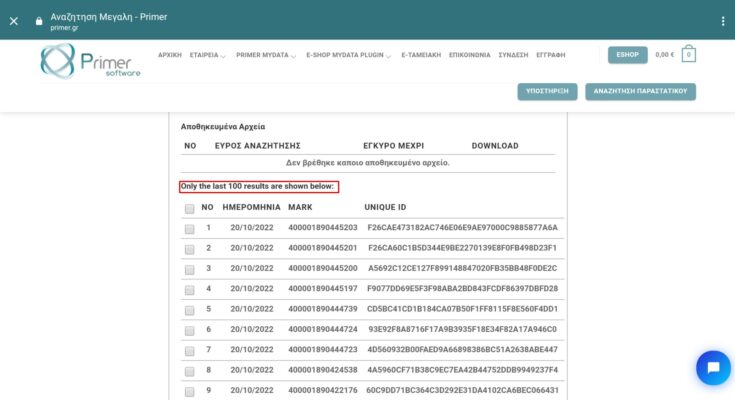
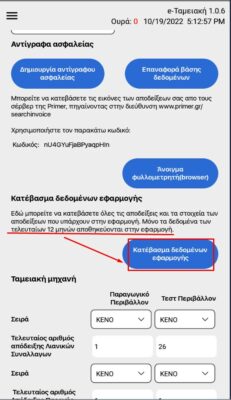
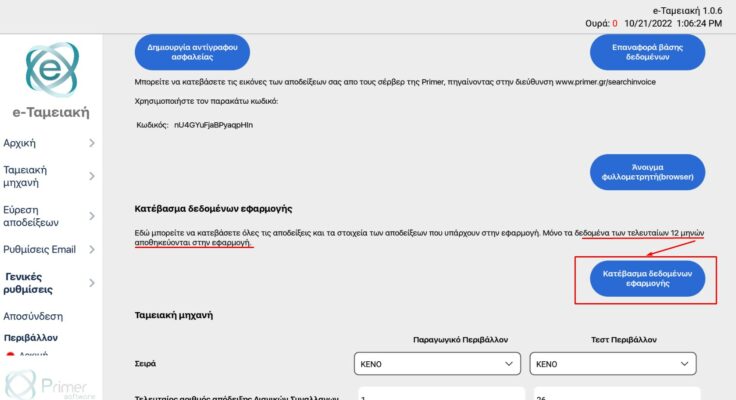
Alternatively, by selecting the Download application data field, you will be able to download all the receipts issued (and not just the 100 that appear on the screen) within the last 12 months.
Cash Register Details #
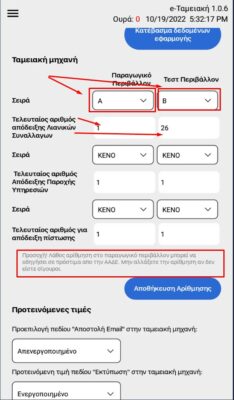
Through the application you can issue three categories of receipts:
- Retail Transaction Receipts (concerns the categories of products and goods)
- Service Provision Receipts
- Credit Receipts
In the Series fields there is the option of letters of the receipts (A to Ω) in Test and Production Environment. Respectively, immediately below are the numbering fields of the last receipt from each category, again in Test and Production Environment. When you are sure that the series and numbering have been entered correctly, select Save.
ATTENTION! in case you enter a wrong series or numbering in the receipts you will issue in a production environment, you commit a tax violation that may lead to the imposition of a fine by AADE. Your accountant is the right person to help you fill in the fields correctly.
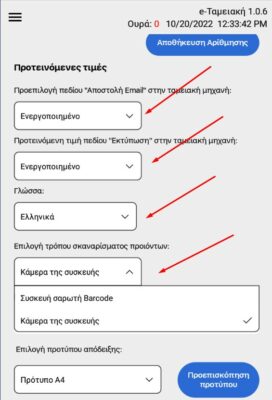
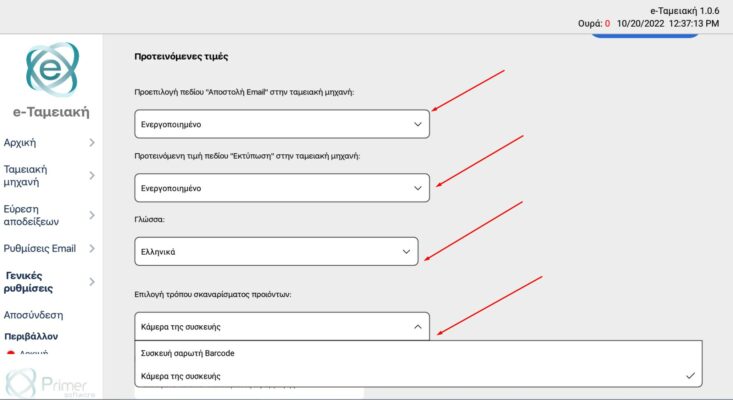
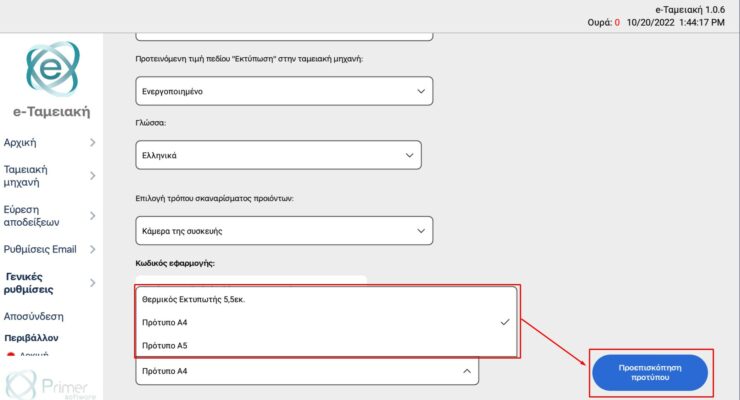
Scrolling the screen down will show us Suggested values for some additional necessary settings. There you have the possibility to enable or disable the options Send email, Printing, set the Language (Greek English), select the way of scanning the products (Barcode Scanner Device or Device Camera)
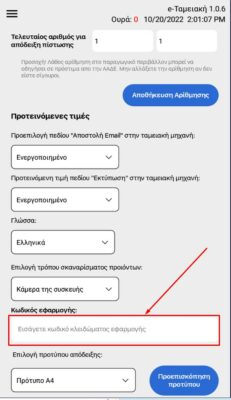
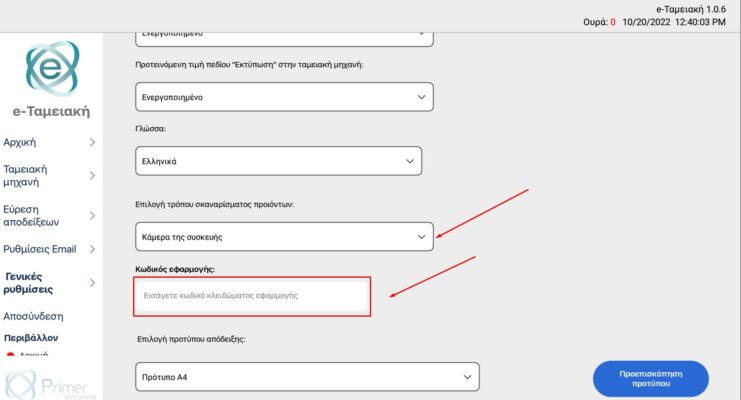
If you have selected the Device Camera, you must enter a code that you can use to unlock the application in the Application code field.
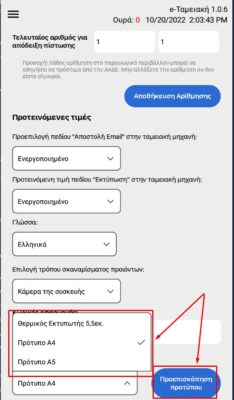
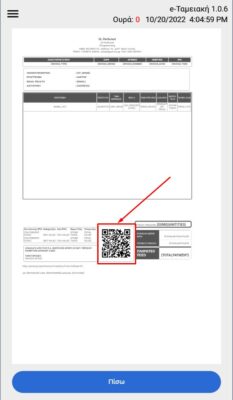
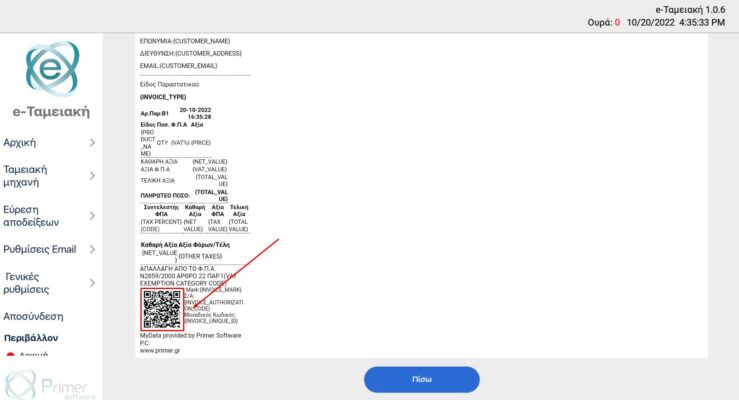
In the Receipt template selection field, you can select the print format of the receipt depending on the Printer you use (A4 Template, A5 Template, 5.5cm Thermal printer) and click the Template preview button to see the format that the receipt printing will have. In all Receipt Printing Templates a QR code appears, which you can scan and be transferred to the Primer Server
Receipt Printing Selection – A4 Template #
MOBILE SCREEN
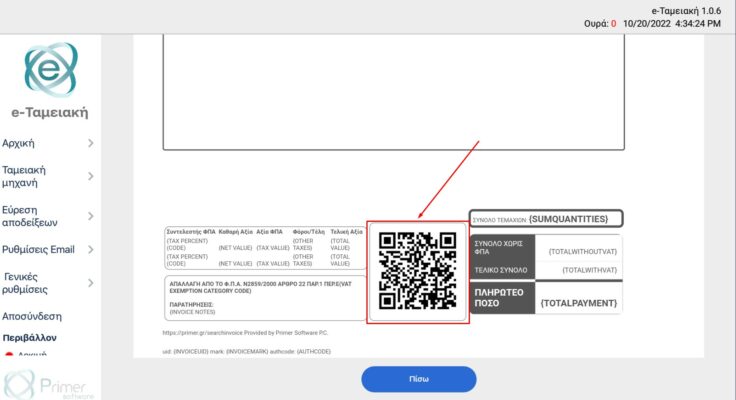
Receipt Printing Selection – A5 Template #
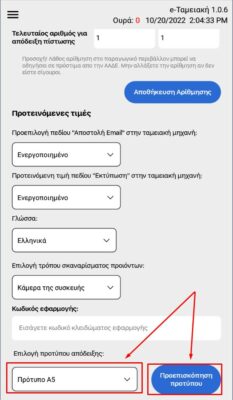
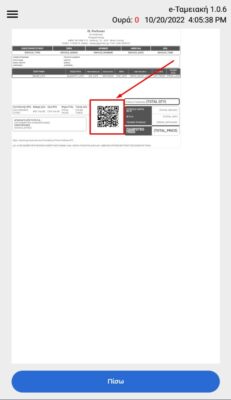
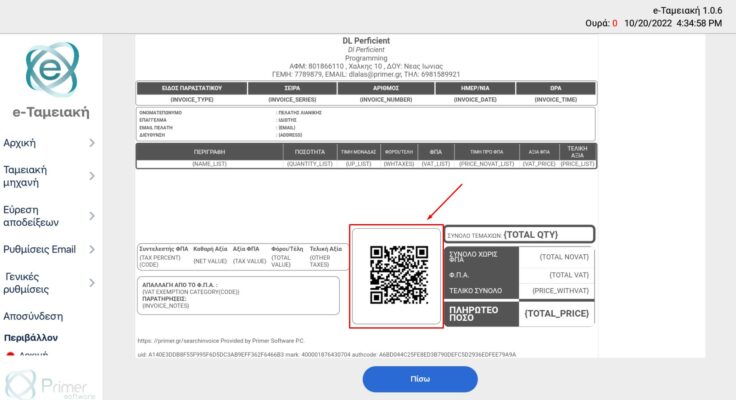
Receipt Printing Selection – 5.5cm Thermal Printer #
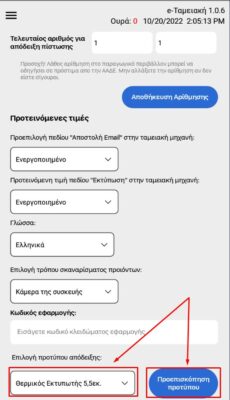
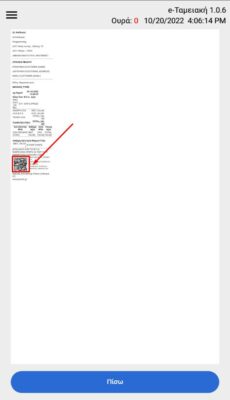
PENDING RECEIPTS FOR PRINTING #
RECEIPT “QUEUE” #
ATTENTION! You should always check upon entering the application if there are pending receipts in the queue.
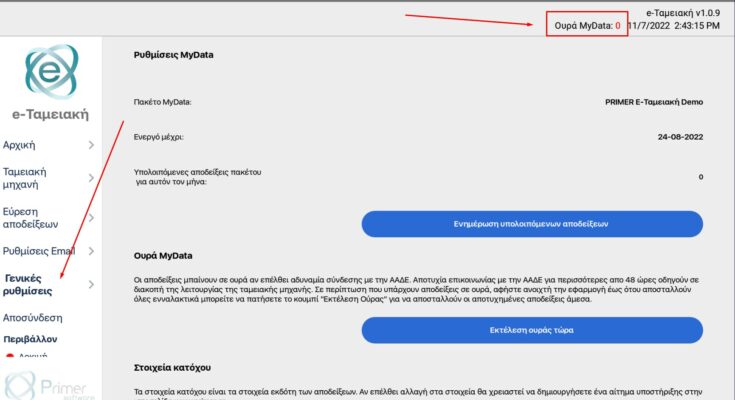
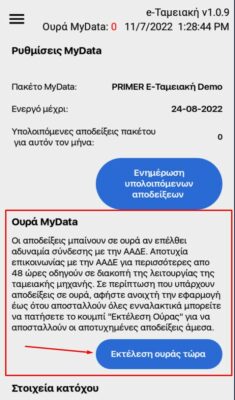
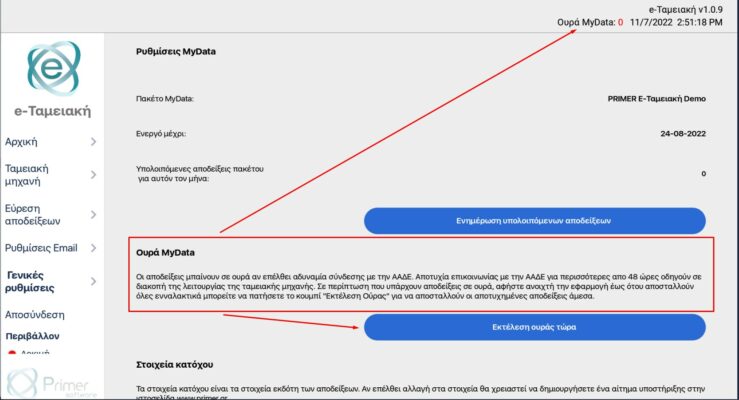
On all screens of the application and regardless of the stage you are at Entry, Checkout, Find receipts, Settings you will ALWAYS be shown at the top of the screen the receipts that due to connection failure could not be sent to AADE and do not have a Mark and QR code. The system tries for 48 hours to complete the submission.
Receipts within the 48-hour period are Legal and accepted by AADE as they state “Connection Failure”. This note on the receipt “justifies” the lack of a Mark and QR code ONLY for the period of 48 hours. Upon restoration of the connection and their submission to AADE, then a message appears that AADE received them and they get a Mark and QR code
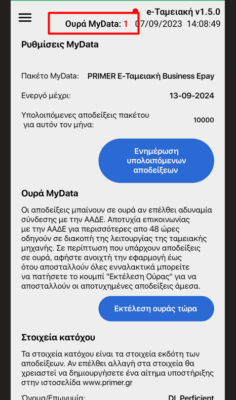
MOBILE SCREEN
ATTENTION! If the connection is not restored after the 48 hours, the receipts may be considered overdue by AADE and there is a risk of fines.
Note. To be able to issue new receipts, the connection must be restored and all receipts that are in the queue must have been sent to AADE, as the application will remain locked until then.
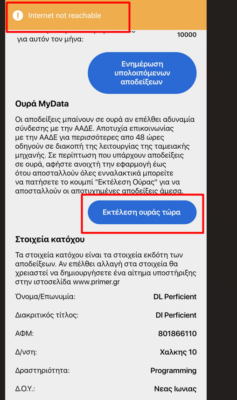
MOBILE SCREEN
A relevant message will also be displayed in the application.
After the message appears, you should go through the Options Menu to General Settings, as described below.
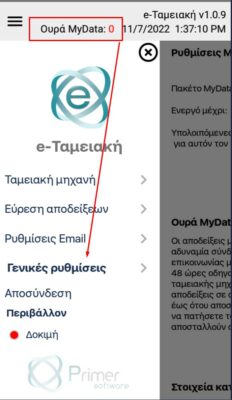
MOBILE SCREEN
TABLET SCREEN