
 ΕΛ
ΕΛProduct Information
FIND RECEIPTS
The Find Receipts field allows us to search for the receipts we have issued through the application, using the search filters of our choice, as well as to save the receipts, either individually (in pdf file format) or in a list (in excel file format). Please note that the relevant files will always be saved compressed (.zip) and you will need to unzip them to open them. After unzipping the file, in case you have chosen to save the receipts in pdf files, you will see that each file displays in its name the number and date of the receipt, to facilitate your search.
SEARCH RECEIPTS #
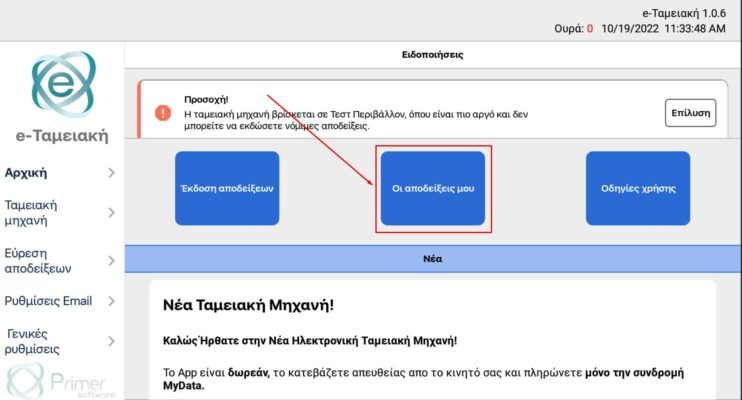
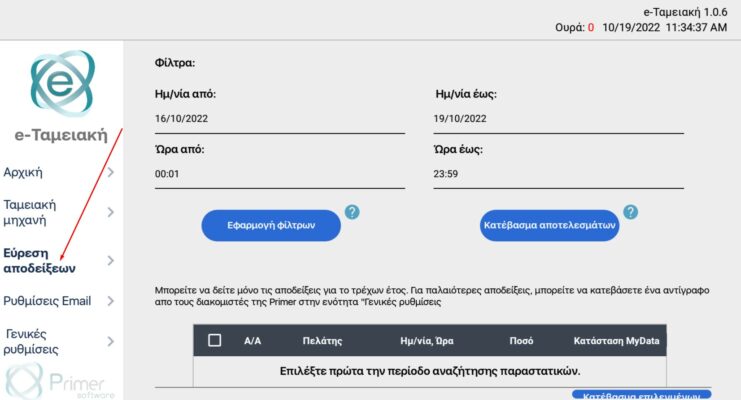
To start searching for our receipts, we have two options, depending on the screen we are on :
- From the Home Screen, by clicking the My receipts button
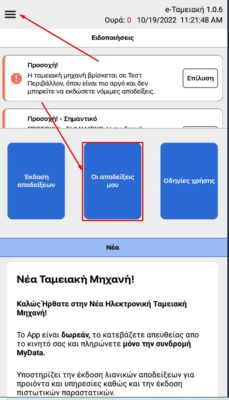
From the Options Menu screen, by clicking Find receipts.
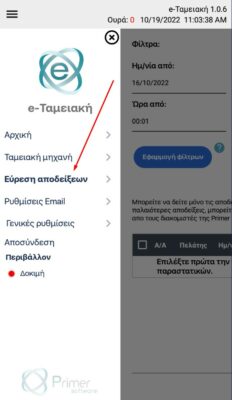
MOBILE SCREEN
APPLYING SEARCH FILTERS #
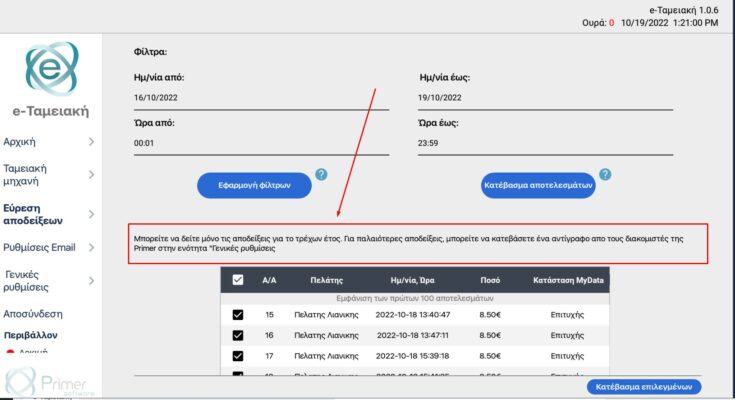
The two above options to start the search lead us to the same search screen, with Filters of choice: (a) date (from – to) and (b) time (from – to).
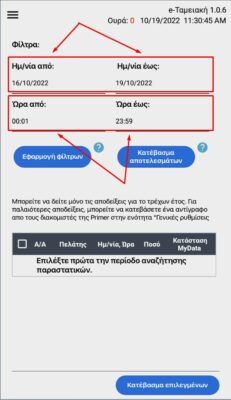
MOBILE SCREEN
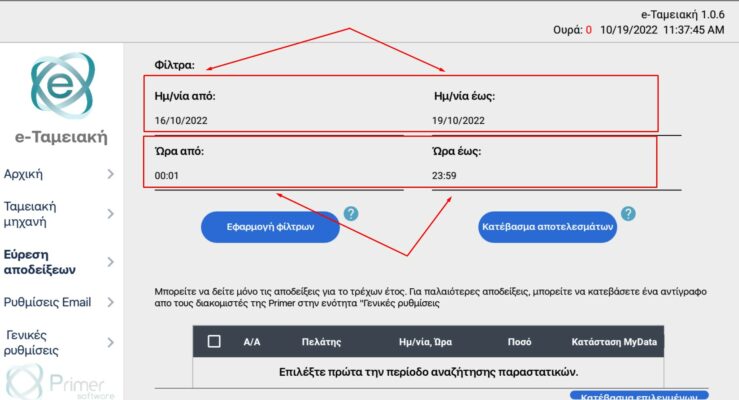
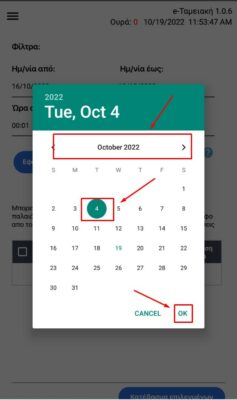
By clicking on the Date from and Date to Filters we can select the time period (in days) for which we want the search to be performed, while, respectively, by clicking on the Time from and Time to Filters we can select the time period (in hours) for which we want the search to be performed.
(The selection of dates is made from the calendar that appears in the filter and of the hours, respectively, from the clock that appears).
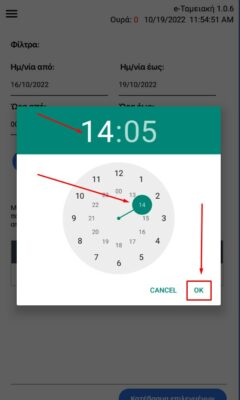
MOBILE SCREEN
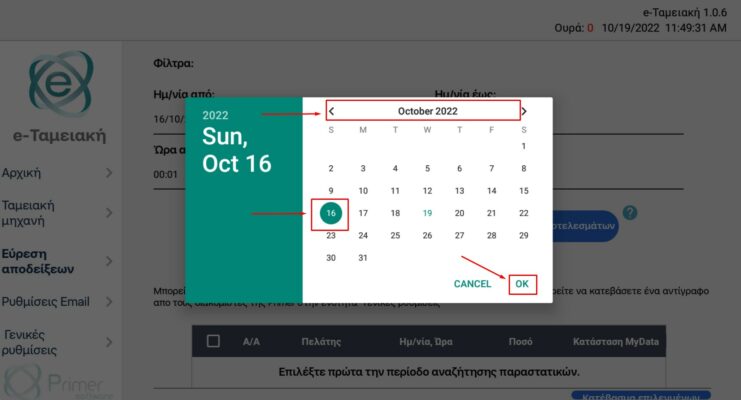
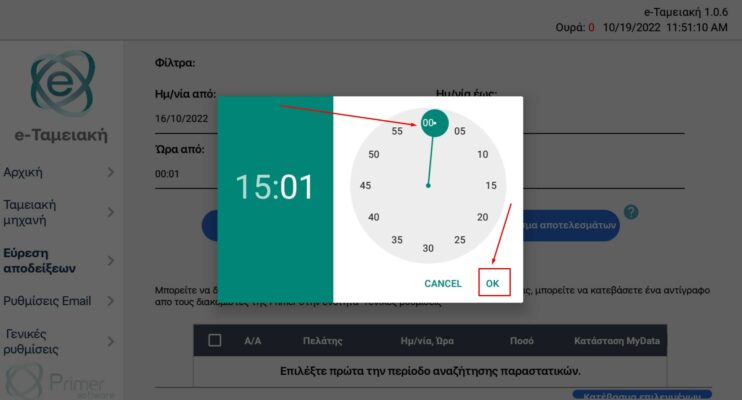
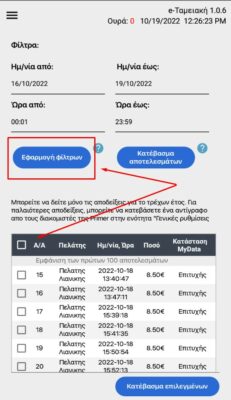
When we have set the receipt search filters of our choice (date and/or time), we click the Apply Filters button. (The filters are always pre-filled, in case you do not want to change them and agree with the default, you can proceed directly to Apply Filters).
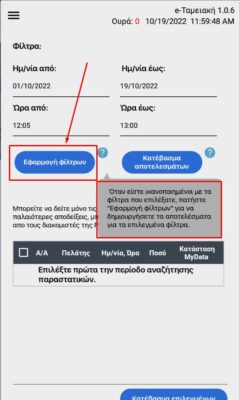
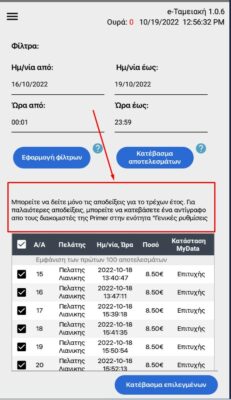
The receipts we have searched for, according to the filters we have entered, will appear in a list.
ATTENTION! The first 100 receipts are displayed on your screen.

SELECT & SAVE RECEIPTS #
From the list of receipts of the specific period we have searched, we can select which ones we want to save, by clicking the Download selected button.
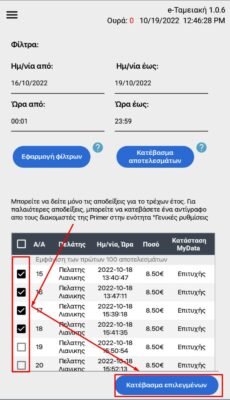
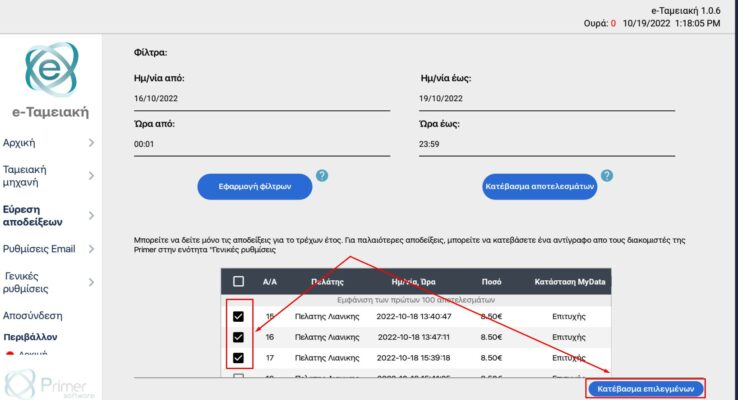
By activating (clicking) the empty field next to the serial number (S/N) of the list, we have the possibility to select ALL the receipts of the list and by clicking the Download results button, we can download the file with all the receipts we have searched for the specific period.
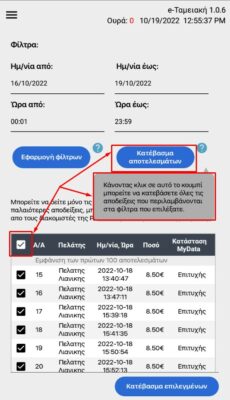

ATTENTION! If the list of receipts you have issued during the selected period exceeds the size of one page, please note that you do not have the ability to display it all to select specific receipts. Try to narrow down the search via the search filters, in order to find the receipt you are looking for more easily, alternatively you can save the full file in pdf format and search for the specific receipt by its number and date from the files that will be created.
SAVING RECEIPTS FROM PREVIOUS YEARS #
ATTENTION! Only the receipts you have issued in the last year (12 months) are stored in the application.
In case you want to search or save older receipts, you can download the file from the Primer server, according to the instructions analyzed in the General Settings section.https://primer.gr/docs/%ce%b3%ce%b5%ce%bd%ce%b9%ce%ba%ce%b5%cf%83-%cf%81%cf%85%ce%b8%ce%bc%ce%b9%cf%83%ce%b5%ce%b9%cf%83/#3-toc-title
MOBILE SCREEN