

 ΕΛ
ΕΛProduct Information
HOME SCREEN
OPTIONS MENU #
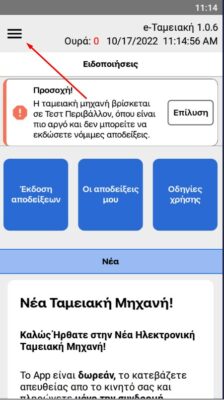
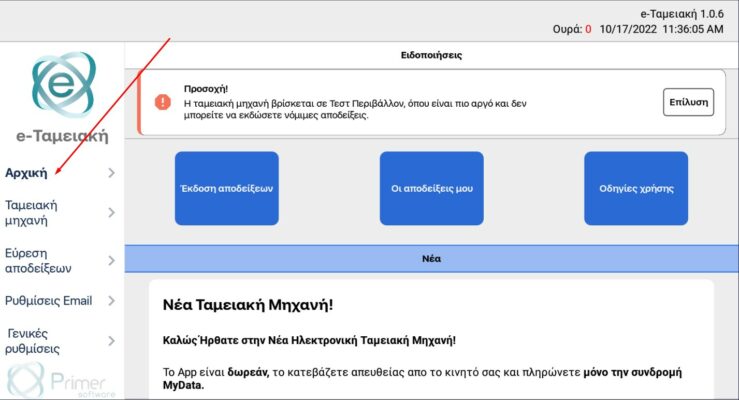
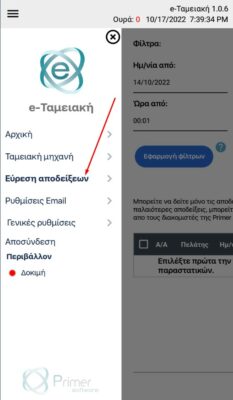
On the first screen that appears on the mobile, we press the Options Menu which is located on the left side of the screen indicated by the arrow.
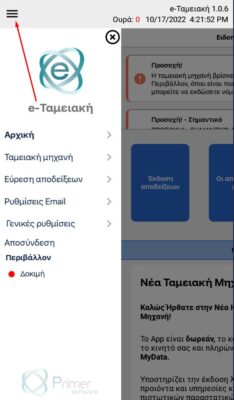
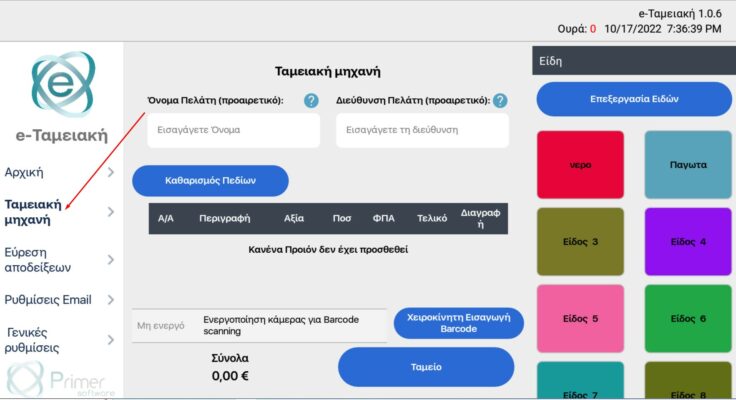
The Options Menu on the Tablet , appears automatically on the left side of the screen.
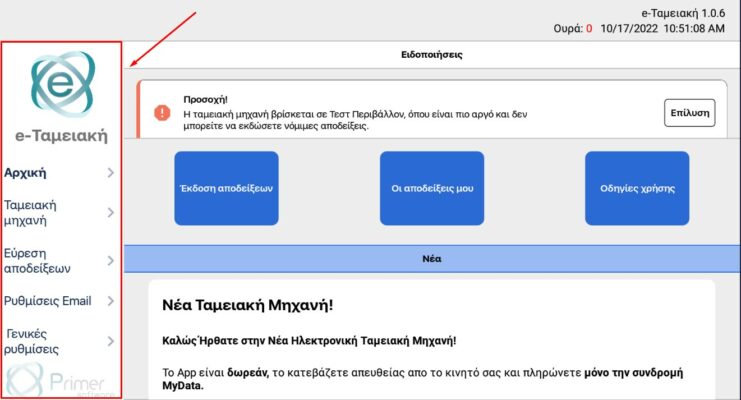
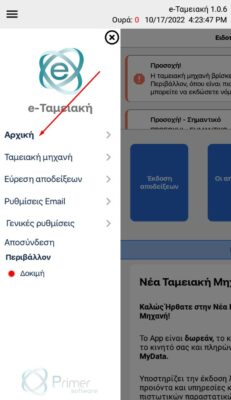
From the Options Menu each command (Home, Cash Register, Find Receipts, Email Settings, General Settings, Logout, Environment) leads us to the corresponding section of the application. (A more detailed presentation of the Logout and Environment options follows.)
LOGOUT #
By selecting the Logout button from the Options Menu we can exit the application.
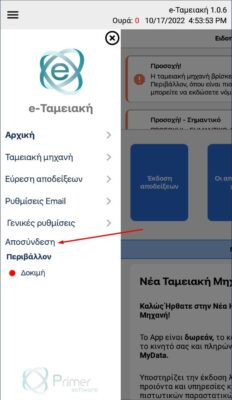
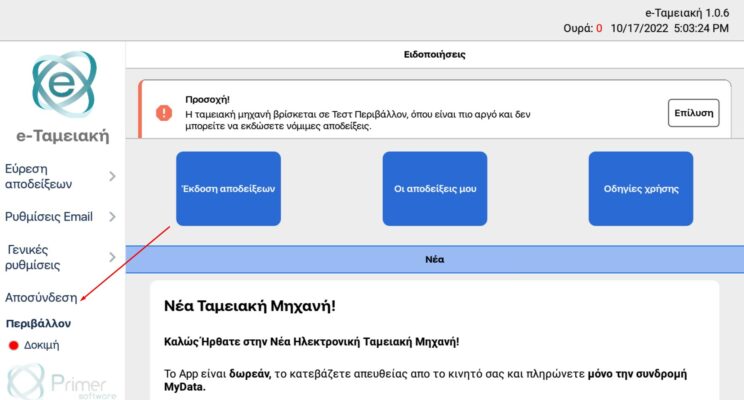
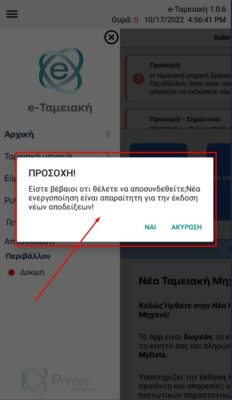
ATTENTION! Selecting Logout means that to issue receipts again you must reactivate the application by entering the details and the user code.
The relevant warning message will appear on your screen.
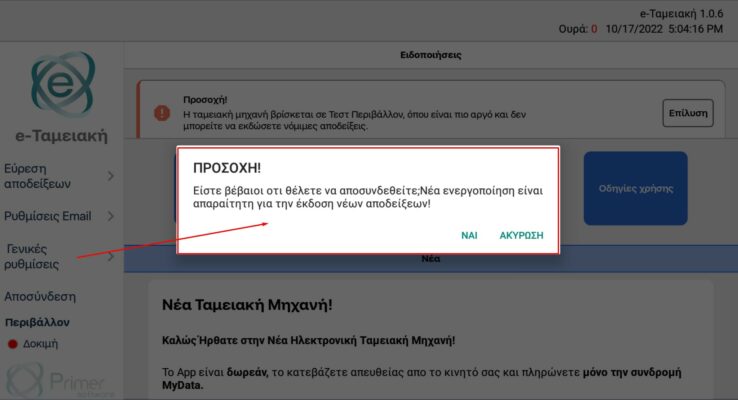
TABLET SCREEN
ENVIRONMENT #
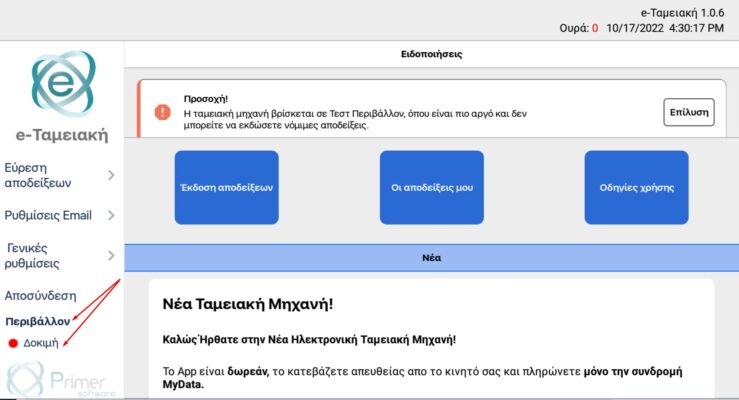
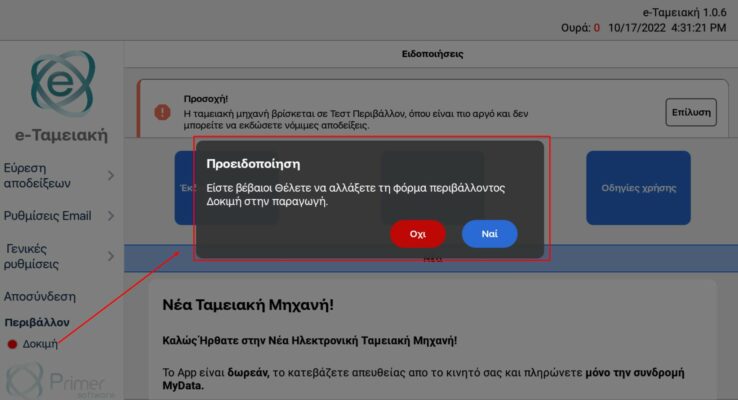
At the end of the Options Menu appears the Environment of the application in which we are (Test or Production). With the option below you can change the operating environment of the application from production (issuing legal invoices) to a test environment (test environment) and vice versa.
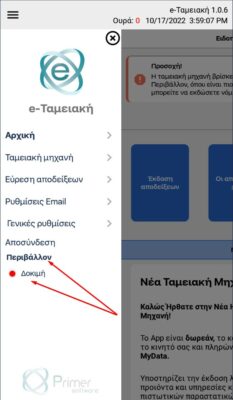
The Test environment is used only for checking the operation of the application and its test operation and NOT for issuing legal invoices (for this reason it is possible that delays may occur during its operation). The invoices you create in the Test environment are not saved or sent to AADE.
The Production environment is used exclusively for issuing legal receipts. When switching from the Test environment to the Production environment, a relevant warning message appears, asking you to confirm this specific change.
ATTENTION! Receipts issued in the Production environment are considered legal receipts and are sent automatically to AADE.
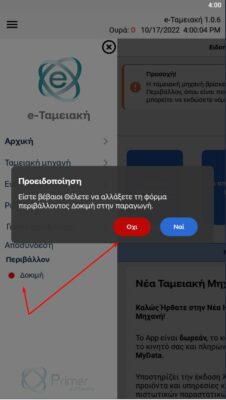
MOBILE SCREEN
QUEUE #
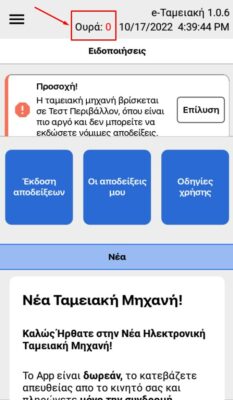
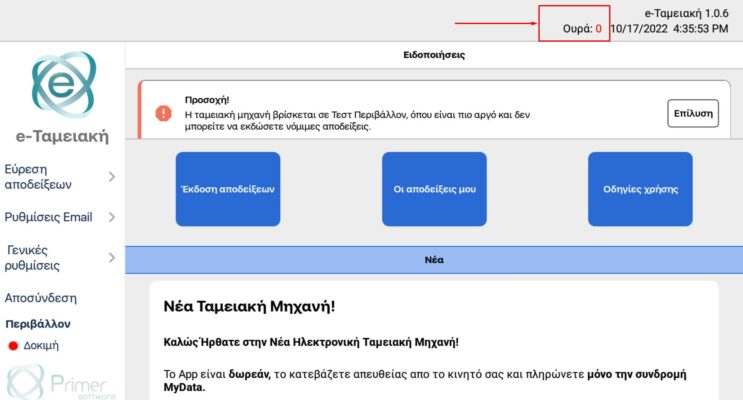
The Queue field, which will be permanently displayed on all screens of the application, concerns receipts that have been issued at a time when the device is experiencing a loss of connection with the Provider and are pending until the connection is restored, in order to complete their submission to My Data. For more detailed information on the receipt Queue, please refer to the section Printing receipts
MOBILE SCREEN
NOTIFICATIONS #
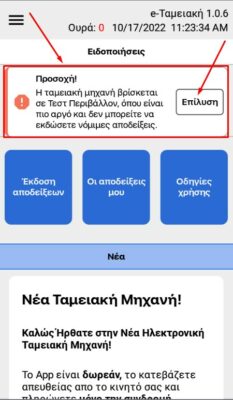
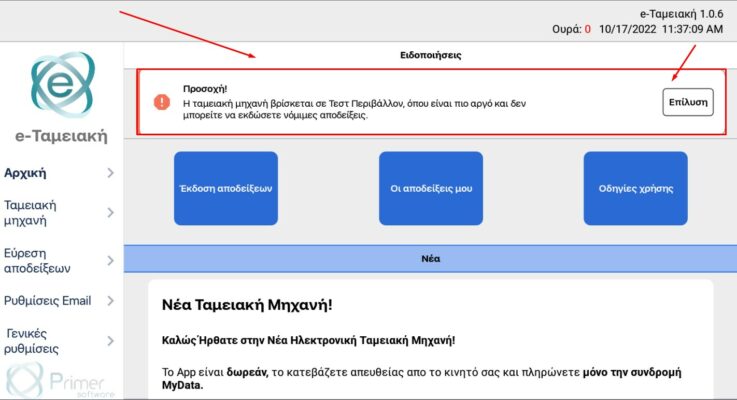
In the Notifications field on the home screen, messages that require your Attention regarding the operation of the application will appear. By clicking the Resolve button, which appears on the same screen, you are given the relevant instructions for the actions you need to take.
MOBILE SCREEN
TABLET SCREEN
ISSUE RECEIPTS #
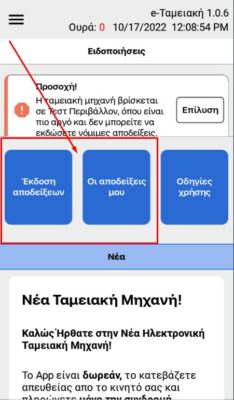
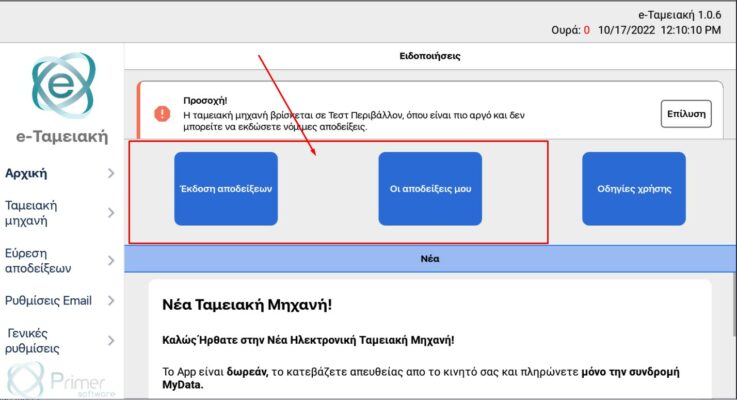
By clicking the Issue receipts button, we are led to the Cash Register. Detailed instructions for using this specific section can be found by clicking here Cash Register (link ).
MY RECEIPTS #
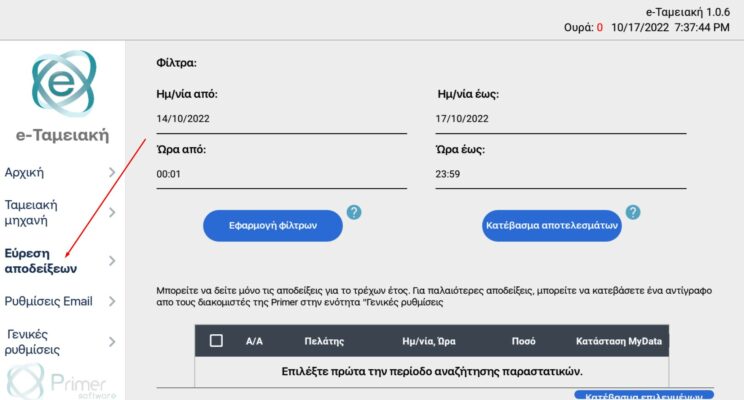
By clicking the My receipts button we are led to Find receipts. Detailed instructions for using this specific section can be found by clicking here Find receipts (link)
TABLET SCREEN
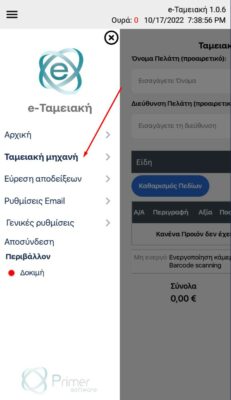
Another way to go directly to the Cash Register or to Find receipts is through the Options Menu.
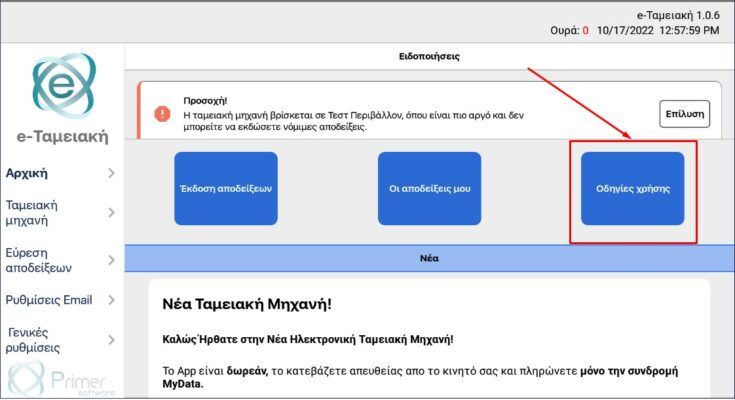
USER INSTRUCTIONS #
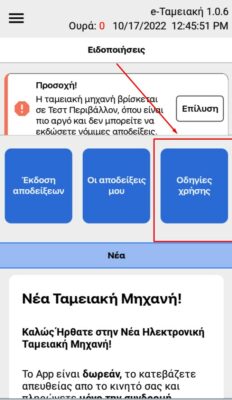
By clicking the User instructions button, you will find available a concise user guide of the application and you will navigate through the basic steps and messages of the application.
MOBILE SCREEN
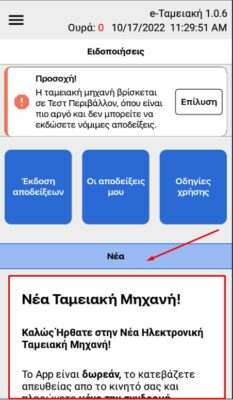
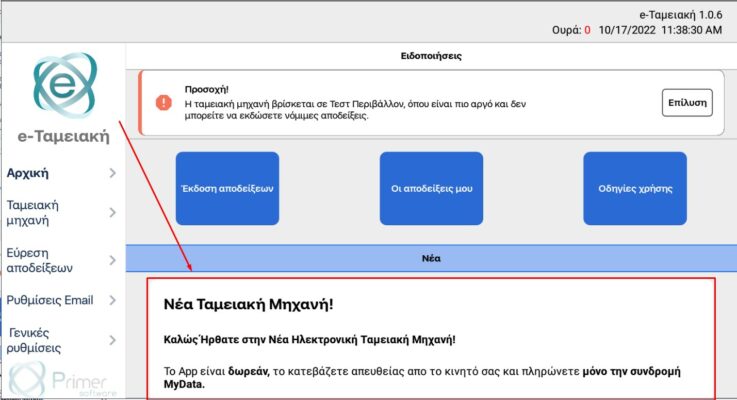
NEWS #
In the News field, useful updates and information about the New Electronic Cash Register, will be displayed, such as e.g. addition of new fields/capabilities, application upgrades, etc.
We recommend that you regularly monitor this section, so that you stay informed about the news of the application, its changes and its capabilities.
TABLET SCREEN