

 Ελληνικά
Product Information
Sales
CONTENTS #
- Sales Entry
- Sales Search
- Collections
- Printouts
SALES ENTRY #
To create an invoice, follow the steps below:
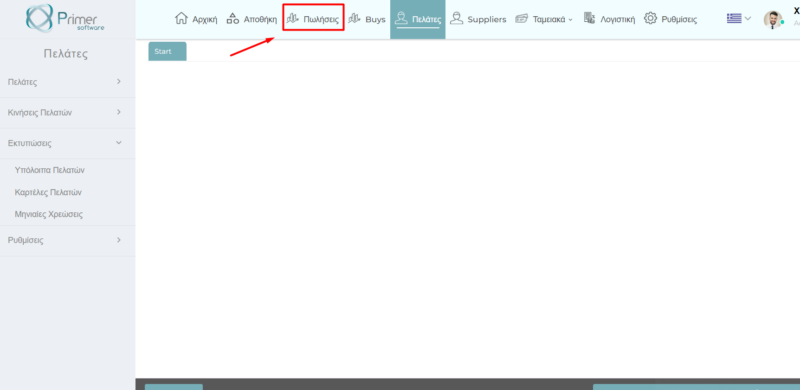
- Select the “Sales” category from the main menu.
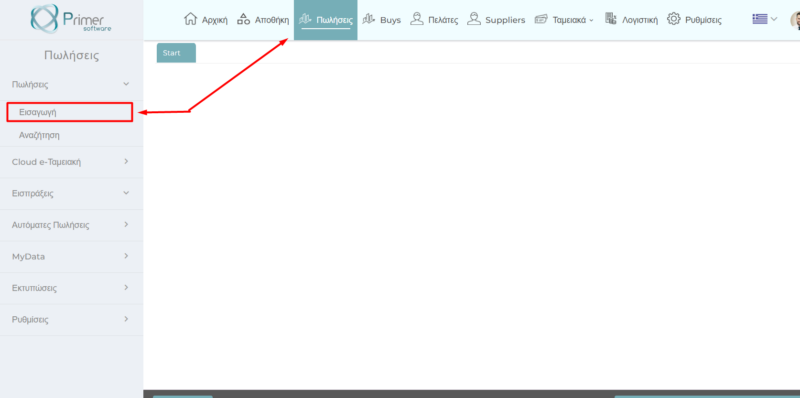
Then, select the “Entry” subcategory located on the left side of the screen.
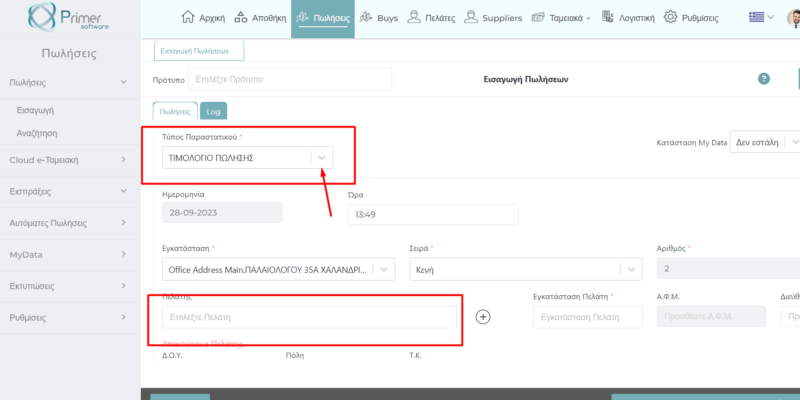
Fill in all the necessary details required by the invoice, such as invoice type, customer and transaction description.
- Add your product to the invoice, by selecting it from your inventory.
- Determine the price of the product.
- When you have completed the invoice and are ready to issue it, select the “Save” option
SALES SEARCH #
To search for invoices you have issued, follow these steps:
- Go to the “Sales” category from the main menu.
- Select the “Search” subcategory.
- A window will appear with various filter options
- Enter the search criteria, such as customer, date, or other details you want to use to filter the invoices
- Then, click the “Apply Filters” button located at the bottom of the page.
- Click the “Apply Filters” button to see the results that match the search criteria you set.
COLLECTIONS
a1).COLLECTION ENTRY
To issue a receipt of collection follow the steps below:
- Select the “Sales” category from the main menu.
- Then, in the left menu, select the “Collections” subcategory.
- Click the “Entry” option to start creating the receipt.
- Fill in the customer’s details, such as their name and address.
- Select the payment method used by the customer (e.g. cash, credit card, etc.).
- Enter the collection amount.
- Click the “Save” button to save the collection receipt.
a2) COLLECTION SEARCH
To search for the collection receipts you have issued, follow the steps below:
- Select the “Sales” category from the main menu.
- Then, in the left menu, select the “Collections” subcategory.
- Click the “Search” option to start the search process.
- Fill in the filters provided.
- Click the “Apply Filters” button to apply the search criteria.
- The results that will appear will correspond to the filters you filled in, displaying the collection receipts that meet the criteria you have set.
PRINTOUTS
a1) SALES ANALYSIS
- From the “Sales” category, you have the ability to get an overall picture of the balance and analysis of your sales. To see the results, follow the steps below:
- Select the “Sales” category from the main menu.
- In the left menu, select the “Printouts” subcategory.
- Then, select the “Sales Analysis” option to start the analysis process.
- Fill in the filters according to your preferences, such as the time period you are interested in.
- Click the “Apply Filters” button to apply the analysis criteria.
- The results that will appear will provide a picture of the invoices issued during that specific time period. You will be able to see which customer issues the invoices, the relevant quantity and the sales amount.
- In addition, you will be able to check the total value of your sales and print the results of these.
a2) GRAPHIC PRINTOUT
Through our ERP, you have the ability to create graphic printouts for your sales, either for total sales, or for a specific customer, or even for a specific payment method or invoice. To create a graphic printout, follow the steps below:
- Select the “Sales” category from the main menu.
- In the left menu, select the “Printouts” subcategory.
- Then, select the “Graphic Printout” option.
- Fill in the filters you prefer, such as the time period, the specific customer, the payment method, or the specific invoice.
- Click the “Apply Filters” button to apply the criteria you set.
- The results that will appear will be based on the filters you selected, offering you a graphical representation of your sales.
- Finally, you will be able to print these results.
a3) COLLECTIONS ANALYSIS
Beyond collections, our program also provides you with the ability to analyze your collections. To find this analysis, follow the steps below:
- Select the “Sales” category from the main menu.
- In the left menu, select the “Printouts” subcategory.
- Then, select the “Collections Analysis” option.
- Fill in the filters you want, such as the time period, the specific customer, or the specific invoice.
- Click the “Apply Filters” button to apply the filters you selected.
- The program will bring you the analysis of the collections according to the filters you selected. You can see the collections of specific customers or even for specific invoices.
In this way, you can analyze your collections based on the selected criteria and see the corresponding results.